
Google Knowledge Panel Guide
You can't edit a knowledge panel directly — here's how to suggest changes Google will actually accept.

"A Google Knowledge Panel can't be edited directly — you submit suggested changes that Google reviews and approves or rejects. There are two paths: claim and verify the panel as its subject for a prioritized \"Suggest edits\" flow, or use the public \"Feedback\" link anyone can access. Some fields (descriptions, subtitles, \"People also search for\") aren't directly editable and must be corrected at their source, such as Wikipedia or Wikidata. Reviews typically take days to weeks, and no edit is guaranteed."
You can’t edit a Google Knowledge Panel directly. You submit suggested changes, and Google reviews them and either approves or rejects each one. There are two ways to do it: claim and verify the panel as its subject for a prioritized “Suggest edits” flow, or use the public “Feedback” link that anyone can access. Some fields, such as descriptions and subtitles, aren’t directly editable at all and must be corrected at their source.
This guide covers both editing tracks, how to claim and verify your panel, which fields you can change versus which are locked, and what to do when nothing updates. Keep one reframe in mind throughout: with a Google Knowledge Panel edit, you suggest and Google decides.
What Is a Google Knowledge Panel (and What Does Editing Mean)?
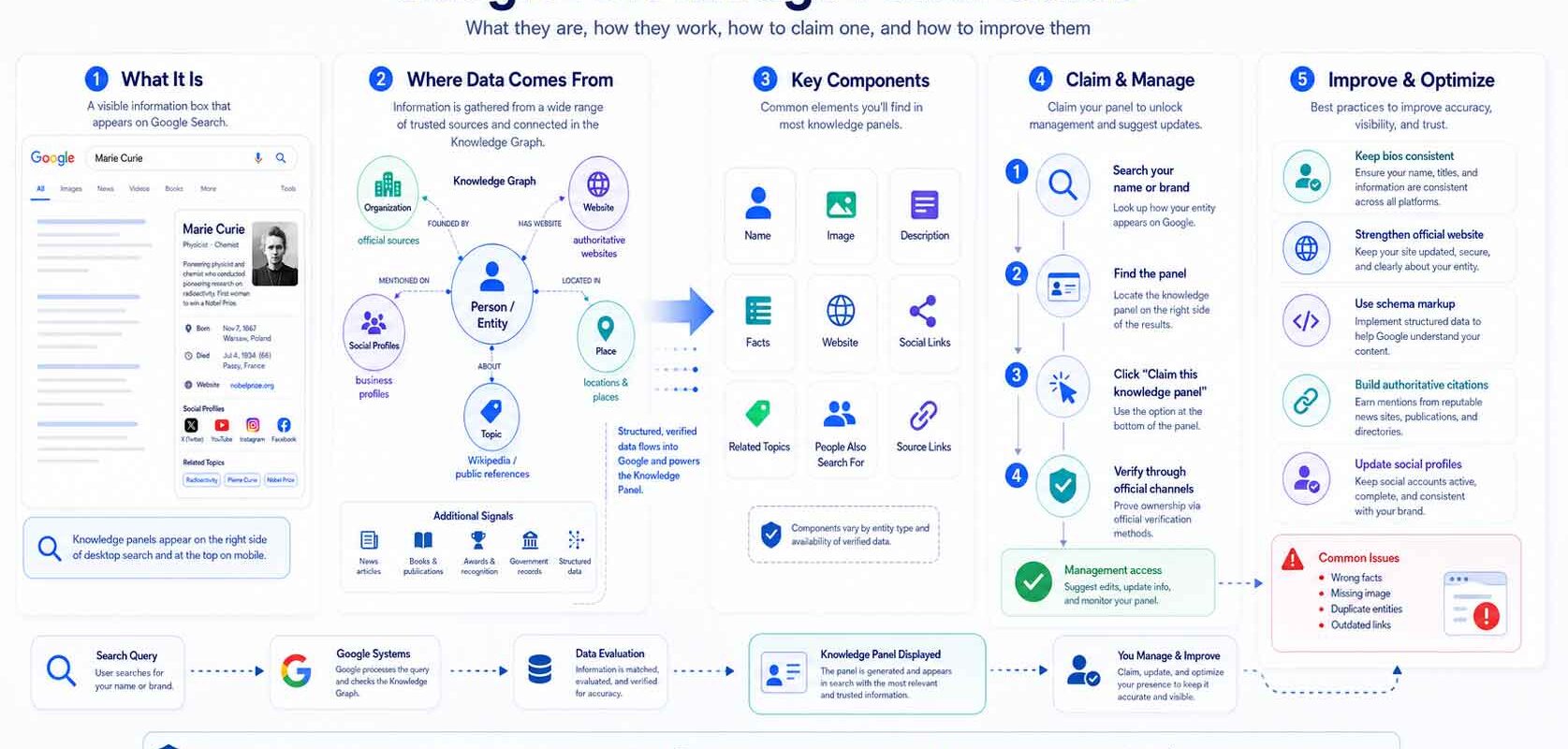
A Google Knowledge Panel is an information box that appears in Search results about a person, organization, place, or thing. Google generates these panels automatically from public web information; it doesn’t manually create or delete them, though it does work to keep the displayed information accurate (Google Knowledge Panel Help).
Panels are powered by the Google Knowledge Graph, a large database of entities and the facts that connect them. As of May 2020, Google reported the Knowledge Graph held roughly 500 billion facts about 5 billion entities, drawn from many sources including Wikipedia (Wikipedia: Google Knowledge Graph). To understand how the Knowledge Graph and the panel relate to each other as distinct systems, see how the Knowledge Graph differs from the Knowledge Panel.
That changes what “editing” means. Because the panel reflects what Google’s systems already understand about an entity, you don’t type into a field. You give Google a corrected fact, with evidence, and ask it to update what it shows. Sometimes that goes through Google’s feedback tools. Sometimes it means fixing the source the panel draws from.
Get a Free Reputation Assessment
Find out what people see when they search for you online. No obligation — results in 24 hours.
Knowledge Panel vs. Google Business Profile: What’s the Difference?
A knowledge panel and a Google Business Profile look similar in Search but are different surfaces, edited through entirely different systems. A Google Business Profile is for businesses that serve customers at a location or service area, and it’s managed directly through Google Business Profile (Google Knowledge Panel Help).
| Aspect | Knowledge Panel | Google Business Profile |
|---|---|---|
| What it’s about | A person, organization, or entity in the Knowledge Graph | A business serving customers at a location or area |
| How it’s created | Auto-generated from public web data | Set up and claimed by the business owner |
| How it’s managed | Suggest edits / Feedback; fix underlying sources | Directly through Google Business Profile |
| Control level | Indirect — you suggest, Google decides | Direct — owner edits most fields |
A quick test: if you can log in and directly change hours, photos, and contact details, you’re working with a Business Profile. If you can only suggest changes and wait for review, that’s a knowledge panel — and the rest of this guide is about the latter. Not sure which type of panel applies to your situation? Understanding personal, brand, and local knowledge panels breaks down the three main varieties and how each is managed.
What Are the Two Ways to Edit a Knowledge Panel?
There are two distinct tracks for changing a knowledge panel, and most confusion comes from blurring them. One is for verified owners and is prioritized; the other is open to anyone but reviewed without priority.
Track 1: Verified owner (“Suggest edits”)
If you are the subject of the panel or an official representative, you can claim it and then suggest changes through a verified flow. Verified feedback is prioritized over anonymous submissions — the single biggest reason to claim your panel before trying to correct it (Google Knowledge Panel Help). This track requires identity verification. For a detailed walkthrough of the claim process itself, see the step-by-step guide to claiming your Google Knowledge Panel.
Track 2: Public “Feedback” link
Anyone can submit a correction through the “Feedback” link at the bottom right of a panel. These suggestions are reviewed but not prioritized the way verified-owner edits are (Google Knowledge Panel Help). It’s the right path when you don’t own the panel — flagging a clear factual error on a panel about someone else, for example — but expect slower, lower-priority handling.
How Do You Claim and Verify Your Knowledge Panel?
Claiming is the prerequisite for the prioritized editing track. Open your panel in Search, tap the menu, and select “Claim this knowledge panel.” Review the information shown, then sign in to one of the official sites or profiles listed for the entity so Google can associate you with it. If Google can’t make that association automatically, you’ll be prompted to provide more information. Note that not all panels are claimable (Google Knowledge Panel Help).
If someone else has already claimed the panel, you’ll need to use Google’s Account Recovery process. Google emails the current owner and waits three business days for a response; if none arrives, the panel becomes claimable again (Google Knowledge Panel Help). For ongoing maintenance once you’re verified, see our guide on how to update a Google Knowledge Panel.
How Do You Suggest an Edit to a Knowledge Panel?
Once you’ve claimed and verified the panel, suggesting an edit is a short, structured process. You work from inside Search, signed into the verifying account, and you’ll need supporting URLs for whatever you want to change (Google Knowledge Panel Help). Submitting verified feedback requires verifying your identity first (Google Knowledge Panel Help).
The full sequence — from signing in with the verifying email to watching for your confirmation email — appears in the steps accompanying this guide. The core idea: flag a specific fact, describe both the current value and the corrected value, and back it with authoritative source links. A single, well-evidenced factual correction moves faster than a vague or promotional request with weak sourcing.
What’s Editable vs. What’s Locked on a Knowledge Panel?
Not every part of a panel responds to a suggested edit. Some fields accept changes with evidence; others are derived from sources and can only be removed in narrow cases, never customized. The matrix below reflects Google’s documented rules (Google Knowledge Panel Help).
| Field | Editable? | What you can actually do |
|---|---|---|
| Featured image | Suggest only | Suggest a direct, publicly accessible image URL. You can’t remove or reorder related images — often a source-fix job (see below). |
| Title | Rarely | Changed only with substantial evidence that Google’s automated pick wasn’t the most representative. |
| Subtitle | Locked | Google doesn’t accept or create custom subtitles. |
| Description | Locked (source-derived) | Not directly editable. Fix the underlying source; with strong evidence Google may remove a description, but won’t create a custom one. |
| Social profiles | Editable | Suggest new profiles or edit existing ones — but you can’t change their order. |
| “People also search for” | Locked | Removable only if an entry violates Google policy; can’t be customized or added. |
The pattern: social profiles, and — with strong evidence — titles and featured images can move through the Feedback flow. Descriptions, subtitles, and “People also search for” are governed by what Google’s systems already believe. For those, the lever isn’t the Feedback form. It’s the source.
How Do You Fix Locked Fields at the Source (Wikipedia, Wikidata & Schema)?
When a field is locked or source-derived, the only durable fix is to change the data Google draws from and wait for it to propagate. Panel data comes from the Knowledge Graph, which Google builds from sources including Wikipedia and Wikidata (Wikipedia: Google Knowledge Graph). The practical move is to make the authoritative, structured records about an entity accurate and well supported (Google Knowledge Panel Help). It’s worth noting that Google Knowledge Panels draw from many sources beyond Wikipedia alone — making consistent, accurate structured data across multiple platforms especially important.
The featured image is a good example, since it isn’t directly editable through the Feedback flow. In one case, Reputation X helped a client whose panel displayed an image they didn’t want representing them. Rather than submitting a direct edit request, the team improved the subject’s Wikipedia article to include a proper headshot and added several images of the subject to Wikimedia Commons — the structured sources Google’s entity systems draw from. Google subsequently began using those images in the panel. A result like this isn’t guaranteed, but it shows why source quality matters so much for fields you can’t edit directly. (Reputation X)
The same logic applies to descriptions and other source-derived facts: correct the underlying Wikipedia or Wikidata entry (with proper citations), or strengthen structured data such as schema.org markup and sameAs links on properties you control, then wait. A Wikipedia page strengthens your panel precisely because it gives Google a well-structured, citable primary source — but only if the entry is well-cited itself. Propagation isn’t instant, and it isn’t promised — but it’s the route Google’s own guidance points to for facts you can’t change inside the panel.
Why Can’t I Edit My Knowledge Panel? (Troubleshooting)
If you don’t see a “Suggest edits” option or the verified Feedback flow, the usual cause is an account or recognition problem, not a bug. Either you’re not signed in with the account that verified the panel, or Google doesn’t yet recognize you as a verified representative (Google Knowledge Panel Help).
Run through this checklist before assuming something is broken:
- Wrong account: Confirm you’re logged into the exact Google account tied to the official site or profile you used to claim the panel.
- Claim not completed: If you never finished the claim-and-verify process, the prioritized edit option won’t appear. Start with claiming.
- Panel isn’t claimable: Not all panels can be claimed; if Google can’t associate you with an official property, the option won’t surface.
- Claimed by someone else: Use Account Recovery and wait the three business days Google allows the current owner to respond.
When edits go through the flow but get rejected, the most common reason is sourcing: the URLs you submitted didn’t independently and clearly corroborate the change. Strengthening the evidence before resubmitting usually does more than resubmitting the same request. For a broader look at the strategies that move a panel in the right direction, see how to change a Google Knowledge Panel for the better.
How Long Do Knowledge Panel Edits Take?
Google says reviews generally take days to weeks, and that it reviews each suggested edit separately (Google Knowledge Panel Help). There’s no official per-field timeline published, so treat any specific day-counts you see elsewhere as estimates, not guarantees — a simple social-profile correction and a contested description change won’t necessarily move on the same schedule.
Two expectations help. First, source-fix changes (Wikipedia, Wikidata) add their own propagation lag on top of any review, because Google has to re-ingest the updated source before the panel reflects it. Second, no edit is guaranteed to be accepted. Plan corrections as an ongoing process, not a one-click fix, and prioritize the inaccuracies that matter most.
Sources
Frequently Asked Questions
How to Suggest an Edit to Your Knowledge Panel
-
1
Sign in with the verifying email
Make sure you're logged into the Google account associated with the official site or profile you used to claim the panel. If you're signed into the wrong account, the verified edit option won't appear.
-
2
Open the panel and click Feedback or Suggest edits
Navigate to your Knowledge Panel in Google Search. Click the "Feedback" link (bottom right of the panel) or the "Suggest edits" option available to verified representatives.
-
3
Flag the fact you want to change
Select the specific piece of information that's wrong or outdated. Google reviews each suggested edit separately, so flag one fact at a time where possible.
-
4
Describe the change and the desired result
Explain what the information currently says and what it should say instead. Be specific and factual rather than promotional.
-
5
Add verifying URLs
Provide authoritative source links that corroborate your requested change. Weak or non-corroborating sources are a common reason edits stall, so cite independent, reliable pages that directly support the fact.
-
6
Submit and watch for the confirmation email
After you submit, Google sends a confirmation email. Reviews generally take days to weeks, and the change is never guaranteed to be accepted.








Protect Your Online Reputation
Every day you wait, negative content gets stronger. Talk to our experts about a custom strategy for your situation.
Get Your Free Analysis