
How to Make a Page Disappear from Google Search
If you control the website, a single line of HTML code is all it takes to make an unwanted page disappear from Google search results for good.

- Add a noindex meta tag to hide a specific page from Google without deleting the page itself.
- You must have admin access to the website to use this method.
- WordPress users can install the Meta Tag Manager plugin to add the tag without editing HTML directly.
- The noindex tag works across most search engines, including Bing and Yahoo, not just Google.
- Removing the noindex tag later will make the page searchable again almost immediately.
You can remove a web page from Google search results by adding a 'noindex' meta tag to that page's HTML. This works only if you control the website, and it hides the page from search engines without deleting it from the site. On WordPress, the Meta Tag Manager plugin makes adding the noindex tag straightforward without requiring HTML knowledge.
How to Make a Page Disappear from Google Search
-
1
Confirm you have site access
This method only works if you control the website and have admin login credentials. You also need access to the HTML code of the specific page you want to remove. If you do not own the site, you will need to negotiate with the site owner to make the change on your behalf.
-
2
Understand what a NoIndex tag does
A NoIndex meta tag tells Google and other search engines to ignore a specific web page, effectively making it disappear from search results. When Google crawls the page and sees the tag, it will remove that page from its index. The page itself will still exist and be readable on your site — it simply will not appear in search results.
-
3
Install the Meta Tag Manager plugin in WordPress
Log in to your WordPress admin panel, typically found at http://example.com/wp-admin/. Navigate to Plugins in the left sidebar and search for and install the Meta Tag Manager plugin. Once installed, activate the plugin before proceeding.
-
4
Add the NoIndex meta tag to your page
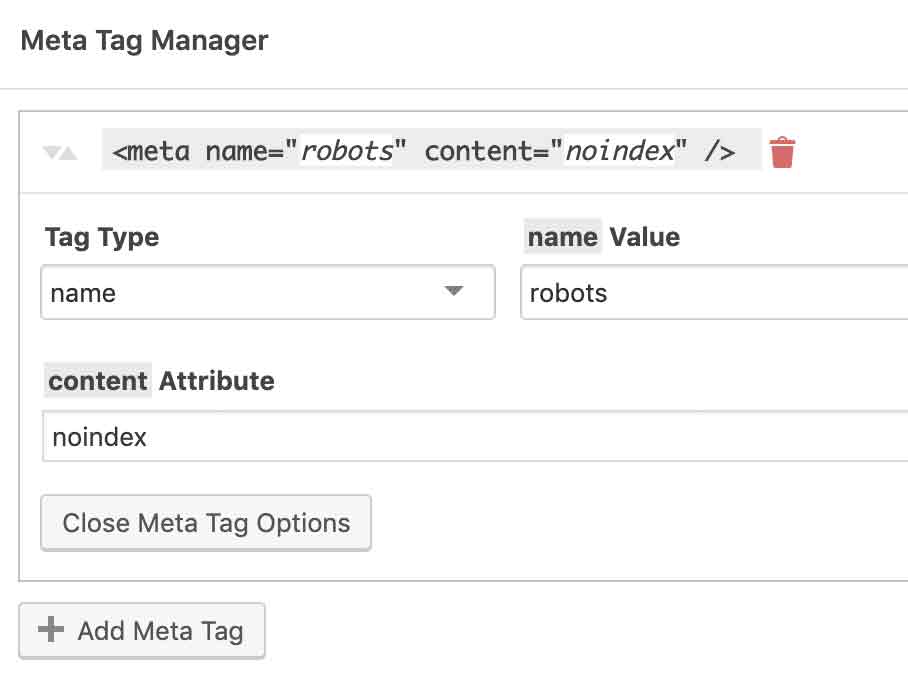
Go to Pages in your WordPress dashboard, find the page you want to remove from Google, and click Edit. Click the 'Add Meta Tag' button provided by the Meta Tag Manager plugin, then fill in the required fields so the tag reads: meta name='robots' content='noindex'. This tag must be placed in the head section of the page's HTML.
-
5
Update and verify the page
After adding the NoIndex tag, click the Update button — usually located in the upper right corner — to save your changes. Visit the live page, refresh your browser, and right-click to view the page source. Confirm that the NoIndex tag appears near the top of the HTML code.
-
6
Speed up removal using Google Search Console
Log in to your Google Search Console and click 'URL Inspection' in the navigation panel. Enter the complete URL of the page you want removed and press Enter. Google will crawl the page, detect the NoIndex tag, and begin removing it from its index — sometimes within a few hours.
-
7
Reverse the process if needed
If you ever want the page to appear in Google search results again, return to the page editor and delete the NoIndex meta tag using the trash icon next to it. Republish the page after removing the tag. Google will make the page searchable again the next time it crawls the URL.
Can you make a web page disappear from search results? Yes, if you have access to it.
You can make Google ignore a web page, making it “disappear” from search results, by adding a “noindex” meta tag to the HTML code of a single web page on your site.
If you don’t have access to the site, someone does. The trick is getting them to do it. That’s where negotiation for reputation repair may come in handy. We also suggest you understand the principles of persuasion first as well.
When Google crawls the page with the noindex tag on it the search engine will delete the page from search results. This method only works if you control the website and have access to the HTML code of a page.
Get a Free Reputation Assessment
Find out what people see when they search for you online. No obligation — results in 24 hours.
It’s not as scary as it sounds.
Note: This technique will not delete the page. The page will still exist on the site on which it is published, but it will no longer appear in Google search results. This method also works to remove a web page from most web crawlers like Yahoo and Bing.
You will need:
- You need to be able to log in as an admin on the site.
- You should understand what a “meta tag” is.
- These instructions are for a WordPress-based site.
How to insert a NoIndex tag into a WordPress page
WordPress powers 33% of all websites. To prevent most search engines from displaying a specific page of your website, put the following meta tag inside the head section of the page you want to make vanish from Google search results.
What is a “head” section of the HTML of a web page?
The head section of the webpage is where all the things that do not show on your page are placed. It’s at the top of the HTML.
| Note: You don’t need to know HTML to add a NoIndex tag. But you can see what your HTML looks like by right-clicking on any web page and clicking “View Page Source” or “View HTML”. Again, you don’t need to do this to insert a NoIndex tag – but you might find it interesting. |
Remember, once you place the NoIndex tag, the page will not disappear from your site – people can still read the page. It will simply not show in Google search results anymore. Here is the tag you will eventually use:
meta name=”robots” content=”noindex”>
How to use NoIndex on a WordPress site
If you have a WordPress-based site, follow these steps:
- Go to your WordPress site’s admin page and log in. This is usually something like http://example.com/wp-admin/
- Go to Plugins on the left sidebar and then add the Meta Tag Manager plugin
- After adding the plugin (and Activating it), go to Pages -> Example page and click Edit. (Note: “Example” could be the name of any page on your site you want to vanish from Google)
- Click “Add Meta Tag” on the page. It looks like this:

- Edit three fields, it should look like this when you are done:

- Now, update the page. The blue button to Update is usually in the upper right corner. It probably looks something like this:

- Once you have updated your page with the new “noindex” tag, check your work by going to the live page, clicking refresh in your browser, and right-clicking on the text to bring up the HTML. On a Mac, the option is “View Page Source”. Near the top of the code you will see this:

- That’s it! Only this page will be ignored by Google. You can always delete the tag by clicking the little trash icon next to the tag on the page later if you want and republishing. Doing so will immediately make the page searchable by Google again.



How long will it take for the page to disappear from search results?
It usually only takes a few days, but we’ve seen it take weeks. If you want to get a web page on your site removed from Google more quickly, follow the steps below.
Last step: Speed up removal of a page from Google
One way to expedite the removal of the page from Google is to use a tool once known as “Fetch as Google” but now known as the “URL Inspector Tool“. Once you have added the NoIndex tag to the page (see above) use the URL Inspector Tool to do this:
Go to your Google Search Console (if you don’t have your setup, click here)
- Click URL inspection in the navigation panel of Search Console:
- Enter the complete URL to inspect.

- Click the Return key (Enter)

Google will now crawl that page, see the NoIndex tag, and begin removing that page from its index. We’ve seen pages deleted from Google using this method in as little as a few hours.
Frequently Asked Questions









Protect Your Online Reputation
Every day you wait, negative content gets stronger. Talk to our experts about a custom strategy for your situation.
Get Your Free Analysis