
How to Claim a Google Knowledge Panel
The exact process to claim, verify ownership of, and fix a Google Knowledge Panel — plus what you can (and can't) change afterward.

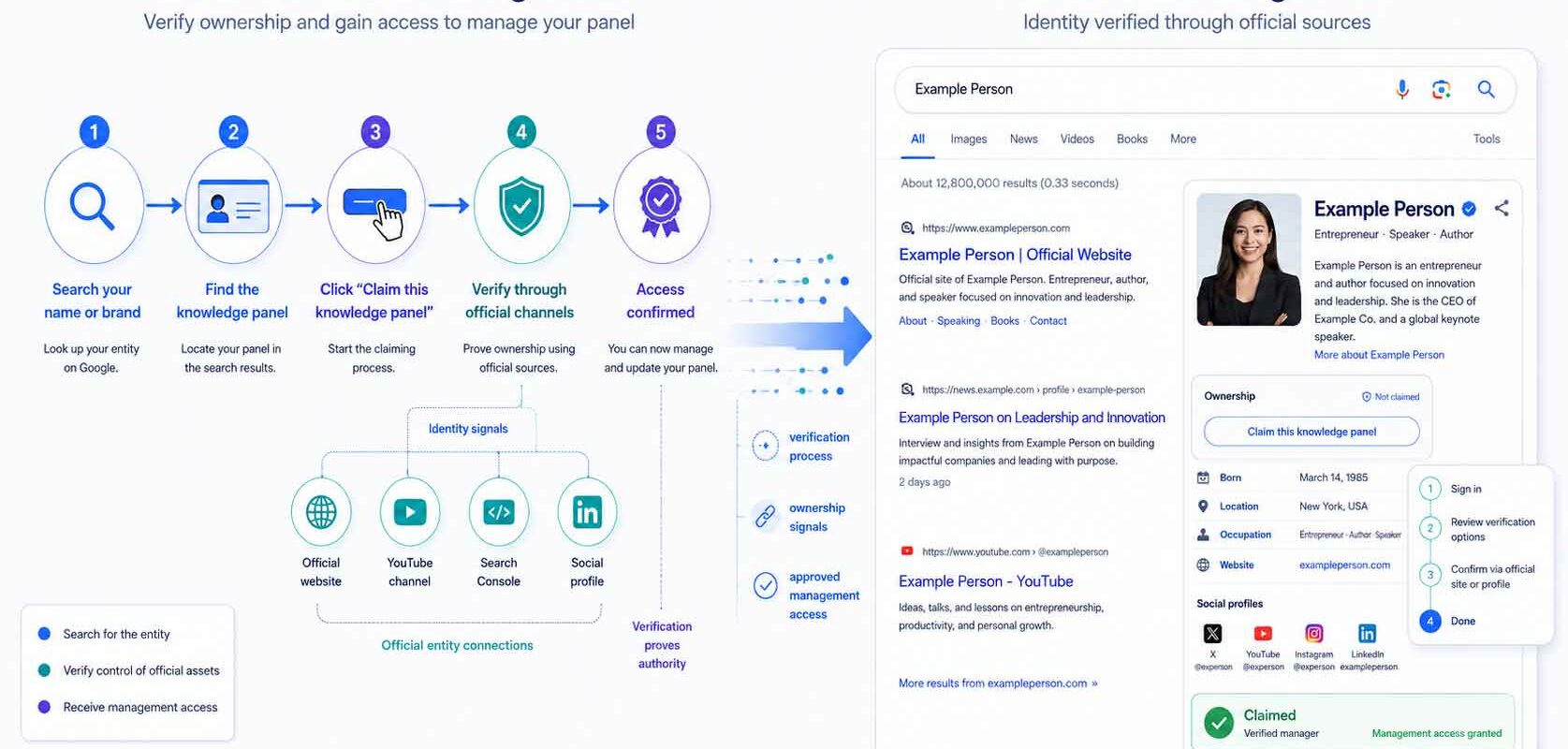
- Claiming a Knowledge Panel verifies you are the entity it describes — but it only prioritizes your suggested edits, it does not give you direct control.
- Verify through a linked official channel — Google Search Console (your website), YouTube, X/Twitter, or Facebook — or through manual review if Google cannot auto-match you.
- No "Claim this knowledge panel" button usually means the panel is already claimed or the entity type is not claimable.
- Descriptions cannot be edited directly — you have to correct the underlying source Google draws from.
To claim a Google Knowledge Panel, search for the entity, scroll to the bottom of the panel, and click "Claim this knowledge panel," then sign in with a Google Account. Verify you are the entity by signing into a linked official channel — Search Console, YouTube, X/Twitter, or Facebook — or through manual review if Google cannot auto-match you. Claiming does not let you edit the panel directly; it lets you submit prioritized suggested edits that Google reviews.
How to claim your Google Knowledge Panel
-
1
Search for the entity on Google
Sign in to your Google Account, then search for yourself, your brand, or your organization. On desktop the Knowledge Panel appears on the right side of results; on mobile it appears at the top.
-
2
Open the claim option
Scroll to the bottom of the panel and click "Claim this knowledge panel." On mobile, tap the Menu (three-dot) icon, then "Claim this knowledge panel." If you do not have a Google Account, create one first.
-
3
Review the entity information
Confirm that the panel describes the correct entity before continuing. If the panel mixes you with a same-named person or shows the wrong sites, stop and resolve that before claiming.
-
4
Sign in to a linked official channel
Verify you are the entity by signing into one of the official sites or profiles Google lists — typically Google Search Console (your website), YouTube, X/Twitter, or Facebook. This confirms control of an authoritative source connected to the entity.
-
5
Complete manual review if prompted
If Google cannot identify any associated sites, you are prompted to provide more information so Google can verify you manually. Submit what the form requests and wait for Google to review.
-
6
Manage the panel after verification
Once verified, use the Feedback option to submit prioritized suggested edits, and add authorized representatives at google.com/search/contributions/manage if a team manages the panel.
Claiming a Google Knowledge Panel means verifying that you are the person, brand, or organization the panel describes — you do it by clicking “Claim this knowledge panel” and signing in through a linked official channel. Verification usually happens by signing into Google Search Console, YouTube, X/Twitter, or Facebook. Once verified, you can submit prioritized suggested edits that Google reviews. You cannot edit the panel directly.
What does it mean to claim a Google Knowledge Panel?
Claiming a Knowledge Panel verifies your identity as the entity the panel describes. It does not hand you control of what the panel says. This is the single most misunderstood part of the process, and it is worth getting straight before you start.
Knowledge panels are automatically generated information boxes for entities in Google’s Knowledge Graph. The information inside them comes from various sources across the web, sometimes through data partners. Some of it comes from verified entities who suggested edits, and featured images can come from people who claimed the panel and selected one. To understand exactly which sources Google draws from — from Wikidata to Crunchbase to industry databases — see our breakdown of Knowledge Panel sources Google relies on today.
So claiming gives you a seat at the table, not the pen. Verified status means your suggested edits are prioritized for review — Google still decides what publishes. Anyone selling you “control of your Knowledge Panel” is overselling what the mechanism does. For how panels are generated in the first place, see our Google Knowledge Panel guide; this article stays focused on claiming, verifying, and fixing problems.
Knowledge Panel vs. Google Business Profile: what’s the difference?
Confirm you are claiming the right thing first. People routinely start in the wrong flow because a Knowledge Panel and a Google Business Profile look similar in search results but are entirely different surfaces with different claim processes. It also helps to understand the differences between personal, brand, and local Knowledge Panel types before deciding which flow applies to you.
Get a Free Reputation Assessment
Find out what people see when they search for you online. No obligation — results in 24 hours.
| Google Knowledge Panel | Google Business Profile | |
|---|---|---|
| Entity type | People, brands, organizations, and other Knowledge Graph entities | Businesses serving customers at a location or service area |
| Who it’s for | A notable person, company, or thing Google recognizes as an entity | A local or service business with customers |
| Where you claim it | The “Claim this knowledge panel” link on the panel itself | Through Google Business Profile (formerly Google My Business) |
| What you can edit | Suggested edits only — prioritized, not direct | Hours, address, photos, posts, and more, directly |
If your goal is to manage hours, an address, or customer reviews, you want a Google Business Profile, not a Knowledge Panel claim. The rest of this guide assumes a true Knowledge Panel.
How do you claim your Knowledge Panel step-by-step?
The core flow is short: find the panel, open the claim link, confirm the entity, and verify through an official channel. Google walks you through it, but a few details trip people up.
Search for the entity while signed in to your Google Account. On desktop, the panel sits to the right of the results; on mobile, it appears at the top. Scroll to the bottom and look for “Claim this knowledge panel”. On mobile, reach the same option through the Menu (three-dot) icon. Then review the entity information and sign in to one of the listed official sites or profiles.
You need a Google Account to claim a panel — create one first if you do not have it. Note that not all knowledge panels are claimable. If there is no claim option at all, that is usually meaningful rather than a glitch (see troubleshooting below).
How do you verify you’re the entity?
Verification is how Google confirms you are the entity, and the route depends on which official channels Google can already associate with you. The cleanest path is signing into a linked official site or profile.
If Google can identify associated official channels, you simply sign into one to verify. If you hit a “not signed in to an associated account” error, add the entity’s official website to Google Search Console and add yourself as a site owner — that links the domain to your account. Verifying via X/Twitter or Facebook stores the association automatically, and you can manage those connections in Webmaster Central. If Google cannot identify any associated sites, you are prompted to provide more information for a manual review.
| Verification method | What it requires | Typical speed |
|---|---|---|
| Google Search Console | Verified ownership of the entity’s official website | Often quick once the site is verified |
| YouTube | Signing into the entity’s official YouTube channel | Often quick / instant |
| X/Twitter | Signing into the entity’s official account; association stored automatically | Often quick / instant |
| Signing into the entity’s official page; association stored automatically | Often quick / instant | |
| Manual review | Providing additional information when no associated sites are found | Variable — Google reviews and responds |
What does manual review actually ask for? Google’s public help documentation only says you will be prompted to “provide more information.” Agency practitioners who have run the process report that manual review can request items such as a government-issued ID photo, a photo of you holding that ID, and screenshots of logged-in social profiles to prove representation, according to DirectOM and Jason Barnard (Kalicube). Treat those specifics as engine behavior that can change without notice — they are not stated in Google’s official documentation, and the exact fields shift over time.
Can you edit your Knowledge Panel after claiming it?
Once verified, you suggest edits — you do not edit the panel like a profile. Even after a successful claim, you may still see “Claim this knowledge panel,” and it may report that someone is already managing the account. To propose changes, use the Feedback option on the panel.
Verified users’ feedback is prioritized rather than auto-applied. Google reviews it within a few days and emails you a resolution. Google may also decline changes — for example, if content is inappropriate, accuracy can’t be confirmed, or the request falls outside Search policies. Two limits are worth memorizing:
- Descriptions can’t be edited directly. They come from data sources, so you have to correct the underlying source instead of editing the panel text. For a full walkthrough of which source to target for which field, see our guide on how to change your Google Knowledge Panel for the better.
- Images follow their own rules. If no image exists, Google won’t add one by request; if one already exists, you can suggest a replacement by submitting an image URL.
That “fix the source” principle is the real lever. In one anonymized engagement, a client’s Knowledge Panel displayed an image they did not want representing them. Rather than trying to edit the panel directly, Reputation X improved the subject’s Wikipedia article to include a proper headshot and added several images of the subject to Wikimedia Commons — strengthening the authoritative, structured sources Google’s entity systems draw from. Google then began using the new images in the Knowledge Panel. (Reputation X client experience — details anonymized.) This is one observed outcome, not a guaranteed or repeatable result, but it illustrates the mechanic: move the source, and the panel can follow. If a problematic image is appearing elsewhere in search results beyond the panel itself, our guide on removing images from Google covers the broader removal process.
If a team manages the entity, add authorized representatives after verifying at google.com/search/contributions/manage.
Why is there no “Claim” button, and how do you fix conflicts?
When the claim option is missing or the panel behaves strangely, there is almost always a concrete cause — and a different fix for each. Work through them before contacting Google.
If there is no “Claim this knowledge panel” button at all, the two most common explanations are that the panel is already claimed or that it is not a claimable entity type. Generic things and certain entity types — podcasts among them, per Kalicube — often cannot be claimed regardless of who you are. For a broader look at how different panel types behave and which are claimable, see our overview of Google Knowledge Panels and how to get one.
For conflicts — content mixed with a same- or similar-named entity, the wrong sites appearing, or an “already managed by someone else” message — Google’s guidance is to contact them. Check internally first. In practice, the most frequent reason a claim stalls is a mismatch between the Google account you are signed into and the official domain or profile Google expects to see. Confirm you are using the account that owns the entity’s verified website, YouTube channel, or social profiles before escalating.
Why does a panel exist, and how do you strengthen it?
Google does not manually create or delete Knowledge Panels. Their appearance and disappearance are algorithmic, based on whether an entity meets Google’s criteria. That is also why claiming can’t conjure a panel into existence; you can only claim one that already exists.
Within the SEO community, the consensus is that a strong Entity Home, consistent information about the entity across the web, and authoritative sources all influence whether a panel generates and how accurate it stays. Wikipedia and Wikidata are not mandatory, but they are widely regarded as strong signals — a view held by practitioners (for example, SiteCentre) rather than an official Google ranking statement.
The same groundwork helps AI answer engines, not just Google. Consistent naming across profiles, Person or Organization schema with sameAs links to your official channels, and a clear Entity Home make it easier for both Google’s panel and large language models to understand who you are. For the deeper playbook on building and reinforcing a panel, see our Google Knowledge Panel guide. For a direct comparison of how Google’s underlying Knowledge Graph relates to the visible panel you’re claiming, our Knowledge Graph vs. Knowledge Panel explainer covers the distinction that shapes every edit decision.
Sources
Frequently Asked Questions





Protect Your Online Reputation
Every day you wait, negative content gets stronger. Talk to our experts about a custom strategy for your situation.
Get Your Free Analysis