
How to Add HTML Schema to a Web Page Footer
Placing schema markup in your website footer helps Google and Bing confidently connect your brand to every web property you own, strengthening your search profile.

Schema markup added to a website's footer helps search engines identify which web properties are related to a person or organization, improving their Knowledge Graph and search profile. For online reputation management, adding 'SameAs' schema markup links a main website to related properties like social media profiles. This guide walks through using a JSON-LD schema generator to create and customize schema code, then embedding it into a web page's HTML.
How to Add HTML Schema to a Web Page Footer
-
1
Choose your schema markup type
Navigate to a JSON-LD schema generator and select the type of schema that fits your subject from the left menu. Companies should use 'organization' while individual people should use 'person'. Choosing the correct type ensures search engines receive accurate, relevant information about the entity.
-
2
Decide what information to include
For a person, available data points include address, related URL, job title, and birth date. For an organization, the available fields will differ accordingly. Only include information that is accurate, appropriate, and that the subject is comfortable making publicly visible.
-
3
Generate the schema code
Fill out the fields in the schema generator with the appropriate information for your subject. The tool will produce HTML-like code in the right pane that you can copy and use directly. Review the preview to confirm the output looks correct before proceeding.
-
4
Add SameAs markup to your schema
SameAs code tells search engines which other web pages and social profiles are related to the same person or organization. Format each SameAs entry as a linked anchor tag so that search engines can follow it: use the format '<div><a itemprop="sameAs" href="URL">Label</a></div>'. This is especially valuable for reputation management because it explicitly connects your entity to its associated web properties.
-
5
Paste SameAs code into the generated schema
Copy your formatted SameAs lines and insert them inside the generated schema block, just before the closing outer div tag. Each additional social profile or related property should have its own SameAs line. This combined code is what you will ultimately add to your website.
-
6
Edit the schema to remove unwanted information
Review the generated schema carefully and delete any lines containing information that should not be public, such as a birth date or personal address. To remove a field, delete the entire line including its opening and closing div tags. Only publish schema data that the subject has approved.
-
7
Add the schema code to your WordPress footer
In WordPress, go to the admin section, typically found at yourdomain.com/wp-admin. Navigate to the Widgets area and add a text or HTML widget to the footer widget zone. Paste your completed schema code into the widget and save to make it live on the site.
Schema markup can improve your search engine profile
During the process of reputation management schema is often added to the footer of websites to inform search engines about the information contained within the site, as well as other web properties associated with the entity.
Schema markup tells search engines a lot of important things. They are optional but helpful on websites. For reputation management, we use schema to help Google and Bing know which sites are related in order to improve the Knowledge Graph that drives today’s web searches, as well as the Knowledge Panel that shows up for entities in the upper right corner of certain desktop searches.
For example, we recommend schema be placed on the main website of a company and use “sameas” markup (more on this later) to show search engines the websites of sites related to the company, like its Facebook page, “X”, and more. By adding this type of schema to the HTML code, search engines know for certain which sites are related to the company. They don’t have to guess. This often results in a better search engine profile for the company. It works for people too.
Create HTML with the schema creator
Choose the Type of Schema Markup You Want. For example, companies should use “organization.”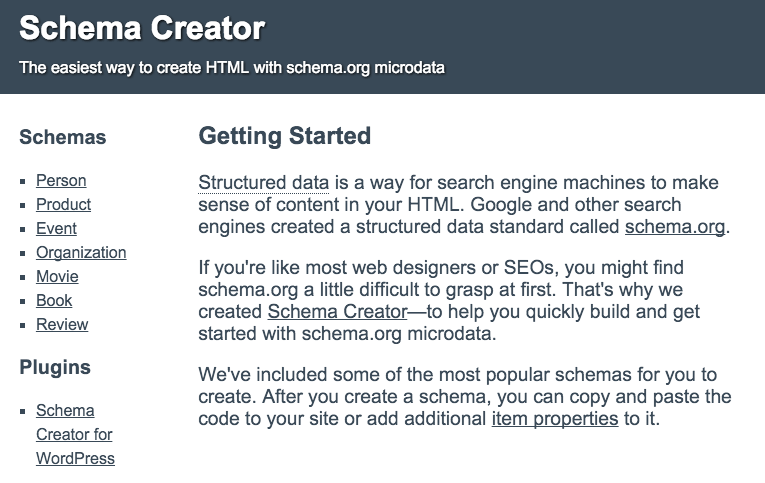
Choose the type of Schema you want to create from the left menu. For example, if the website is about a Person, choose “person”. In this exercise, we will assume we are creating a schema for a person.
Here is the link you will eventually use after you have read this document:
A generator we like to use is this JSON-LD version
Get a Free Reputation Assessment
Find out what people see when they search for you online. No obligation — results in 24 hours.
Decide what information to include in your schema
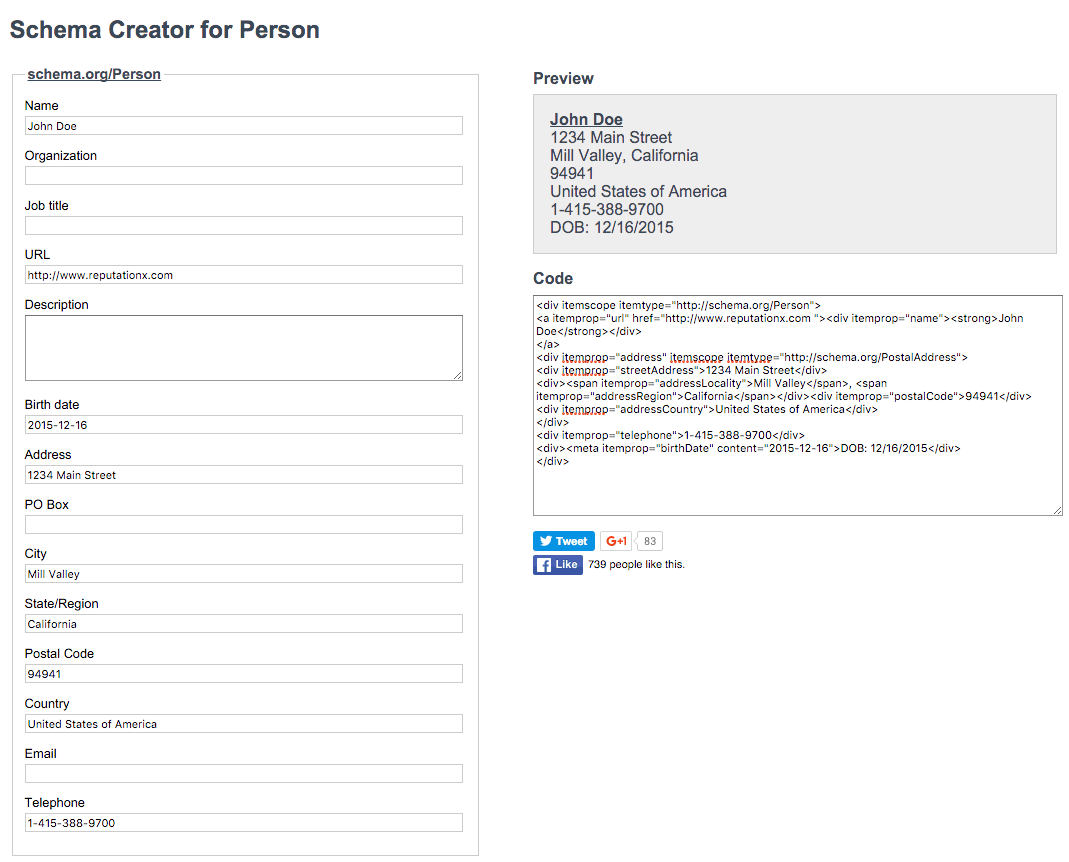
When creating micro-data for a person (schema markup) you have a few kinds of information you wouldn’t normally have for an organization. The person can be alive or dead, even fictional. The tagging captures data points related directly to the person. Potential tags include address, related URL, job title and birth date. Here is an example of how you might fill out a schema for a fictional person named John Doe:
Add “SameAs” code to schema markup
You can see in the right pane both what the HTML will look like on the web page and the HTML-like code behind it in the “Code” section. It looks a lot like HTML. You could just cut and paste this code right into your WordPress site, but we want to add a bit of markup called “SameAs” first.
A good explanation of what SameAs means can be found here, but suffice it to say that the addition of the SameAs code to the Schema we just created will tell search engines about other web pages that are also about the subject. This is important for online reputation management because it informs search engines as to what websites and web pages (you can include both) are relevant to the person or company you are indicating.
Normal schema “SameAs” code looks like this
The SameAs code looks like this:
<div itemprop=”sameAs” href=”https://x.com/johndoe”>John Doe on X</div>
… But should be changed to this:
<div><a itemprop=”sameAs” href=”https://x.com/johndoe”>John Doe on X</a></div>
Because this will make it into a link. Search engines follow links, which is what we want. You do not have to make it a link, you could just add the code to your HTML and it would work – you just won’t have a link to your social media or related properties. Why would you forgo a link from your site to those properties? Because you may already have links/icons, etc. that point there.
Paste the SameAs code into your generated schema
You can copy the code above, paste it into the code from Schema Creator like this ( below and in green for your convenience):
<div itemscope itemtype=”http://schema.org/Person”>
<a itemprop=”url” href=”https://www.reputationx.com “><div itemprop=”name”><strong>John Doe</strong></div>
</a>
<div itemscope itemtype=”http://schema.org/Organization”><span itemprop=”name”>Reputation X</span></div><div itemprop=”jobtitle”>Chief Mucky-Muck</div>
<div itemprop=”description”>John Doe is a really weird guy. He wears a chicken hat most days, is a Pokemon fan, and has posters of Prince all over his office that scream “‘Cuz they say two thousand zero zero party over / Oops out of time / So tonight I’m gonna party like it’s 1999″ every time someone walks by. </div>
<div itemprop=”address” itemscope itemtype=”http://schema.org/PostalAddress”>
<div itemprop=”streetAddress”>1234 Main Street</div>
<div><span itemprop=”addressLocality”>Mill Valley</span>, <span itemprop=”addressRegion”>California</span></div><div itemprop=”postalCode”>94941</div>
<div itemprop=”addressCountry”>United States</div>
</div>
<div itemprop=”email”>example@email.com</div>
<div itemprop=”telephone”>800-889-4812</div>
<div><meta itemprop=”birthDate” content=”1964-07-05″>DOB: 07/05/1964</div><div><a itemprop=”sameAs” href=”https://X.com/johndoe”>John Doe on X</a></div>
</div>
Edit the schema markup
The schema markup provided by an online generator may have information you do not want. For example, let’s assume you accidentally put Johns’s birthday in there, and John Doe doesn’t want to reveal his birthday was way back in 1964 because it makes him feel old (like it does the author of this post). You would delete the line with his birthday. Here is an example of an unwanted line of schema code (only because John wouldn’t want it).
<div><meta itemprop=”birthDate” content=”1964-07-05″>DOB: 07/05/1964</div>
You can delete that whole line including the <div> and </div> tags. So now the schema doesn’t include the birthday. You could also choose not to include it in the first place when filling out the schema generator form of course.
How to paste schema code into WordPress
If your site uses WordPress you would go to your website, then go to the admin section. It will usually be somewhere like this: www.example.com/wp-admin
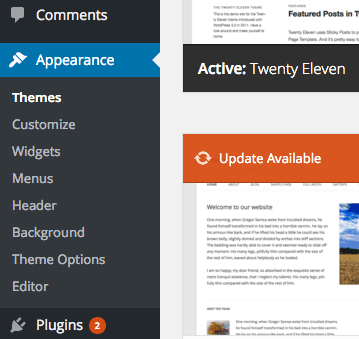
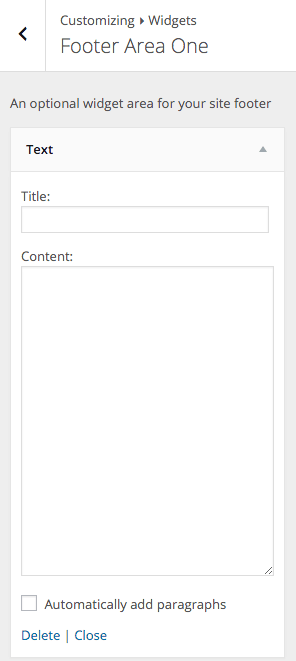
Log in to your site. Different WordPress themes have different menus. But for the most part, you will want to place the schema markup HTML in the footer of every page of your website. We are going to do that by clicking on Appearance, then Customize, then Widgets, and then the footer section in which we want to place the code. In our case, this is Footer Area One (our template has three footer areas, yours may only have one).
Add a widget to WordPress
After we navigate to Appearance, then Customize, we’re going to add a Widget by clicking Add a Widget.
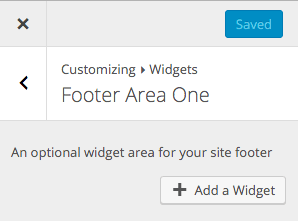
The widget we want to add to the footer section will enable us to drop that schema markup into the footer so the schema will show up all over the site.
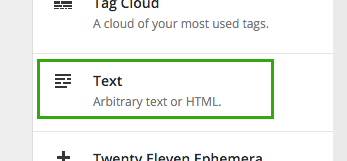
Once we have added the Text (arbitrary text or HTML) we’ll have an area in which to paste the schema code. Before we paste the code it will look like this:
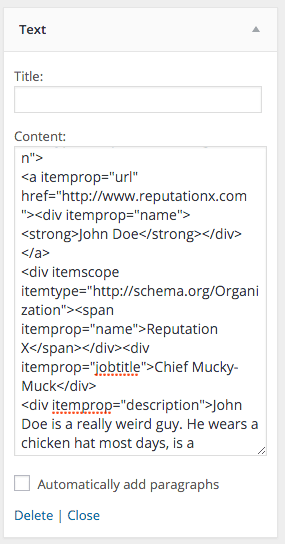
After we paste the code it will look like this:
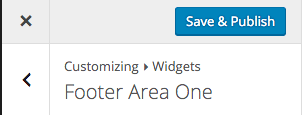
Save and publish
And when we click “Close” at the bottom of that window and click Save and Publish at the top,
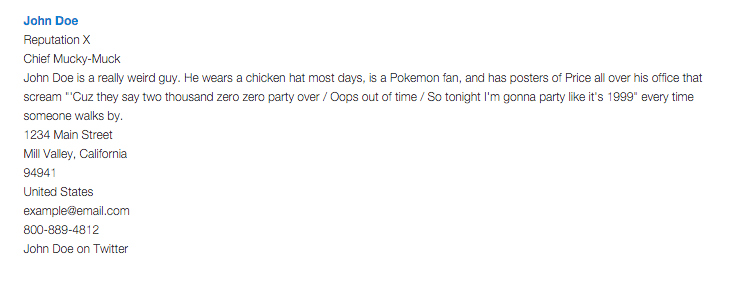
A complete schema looks like this
When done, it will look like this at the bottom of every page on the website. In the example below, only the words “John Doe” are a link. But if we had added the “<a itemprop=” instead of the <div itemprop… the “John Doe on X” would also be a link.
An additional note on Meta tags
You can add schema language that is not visible on the web page. To do this, use Meta tags. But that’s not what we’re talking about here, just thought you would like to know that it is possible.
Frequently Asked Questions








Protect Your Online Reputation
Every day you wait, negative content gets stronger. Talk to our experts about a custom strategy for your situation.
Get Your Free Analysis